


Astra (Free Version) is one of the lightest and most flexible WordPress themes. Although it doesn’t yet support Full Site Editing (FSE), it may actually be faster to use. However, in its free version, it doesn’t include a built-in system to upload custom fonts.
Fortunately, the Brainstorm Force team (the same developers behind Astra) created a free plugin called Custom Fonts, which allows you to add almost any custom font to your site fairly easily, even without using Google Fonts.
In fact, many high-quality fonts are not available in the Google Fonts library. Hosting them directly on your site can be useful for at least two important reasons.
Privacy: By avoiding loading fonts from third-party servers, you reduce the collection of user data by external providers (like Google), helping your site better comply with privacy regulations (e.g., GDPR).
Loading speed: Hosting fonts locally reduces external requests to Google’s servers, improving page load times, especially for users with slow connections or in regions far from Google’s servers.
In this article, I will show you step by step how to do it.
Install the Custom Fonts Plugin
- Log in to your WordPress Dashboard.
- Go to Plugins → Add New.
- Search for “Custom Fonts” by Brainstorm Force.
- Click Install Now and then Activate.
Once activated, you will find a new menu item under Appearance → Custom Fonts.
The plugin allows you to either import fonts from the Google Fonts library or upload fonts directly from your computer. This article focuses on the latter option.
So, let’s talk about fonts to upload from your computer. The most common web formats are .woff or .woff2 (recommended). The .woff2 format is a compressed format for web use. Its name comes from WOFF (Web Open Font Format), but compared to .woff, it offers more efficient compression, reducing file sizes by up to 30%, and is supported by virtually all modern browsers (Chrome, Firefox, Edge, Safari).
Upload Fonts Using Custom Fonts
- Go to Appearance → Custom Fonts.
- Click Add New.
- Enter the font name (e.g., “Alternative Montserrat”).
- Upload the font files directly from the Media Library or from your computer.
- Click Publish.
Your new font is now registered and available in the theme.
However, there may be a small issue because WordPress does not allow uploading files like .woff or .woff2 to the Media Library by default. You can bypass this with a simple snippet.
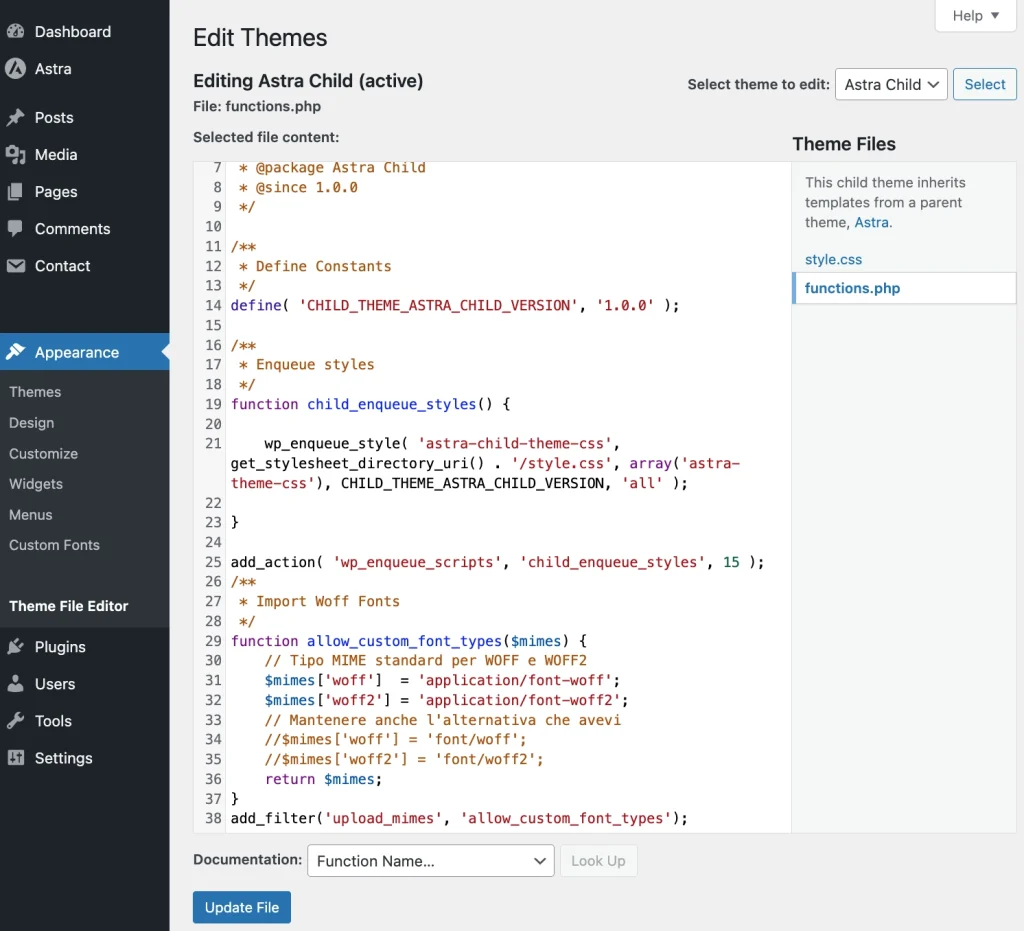
Paste the following code in Appearance → Theme Editor → Theme Files → functions.php:
/** * Import Woff Fonts */ function allow_custom_font_types($mimes) { // Standard MIME type for WOFF and WOFF2 $mimes['woff'] = 'application/font-woff'; $mimes['woff2'] = 'application/font-woff2'; // Keep the alternative you had //$mimes['woff'] = 'font/woff'; //$mimes['woff2'] = 'font/woff2'; return $mimes; } add_filter('upload_mimes', 'allow_custom_font_types');It is recommended to use a child theme for Astra. If you haven’t used a child theme (always the suggested option), you can use a plugin like WPCode.
If you are using an Astra Child theme, paste the code here:
Once the font (and its variants, if any) is uploaded in Custom Fonts, it will be available for use in Astra → Customize → Global → Typography → Content Font or Header Font, or for various h1, h2, etc.
Learn how to create an advanced sticky header in Astra Free.
